
Desktop Commander MCP
A local tool server for desktop MCP clients, exposing file read/write and search, surgical edits, terminal commands, process management, and structured-data analysis over STDIO. Its broad host permissions require narrow directory scope and container or VM isolation for sensitive work.
Project overview
Desktop Commander MCP gives an MCP client local file-system, terminal, process, and data-analysis tools. It can help an agent search a controlled workspace, apply focused edits, run build or diagnostic commands, and follow process output. That also makes it a high-privilege local component: the project's SECURITY document explicitly says allowedDirectories and command blocklists are guardrails rather than security boundaries, so sensitive work belongs in Docker or a virtual machine.
Core capabilities
File operations and surgical edits
Read, write, move, and delete files, inspect metadata, and apply search/replace or block-level edits. Narrow allowed directories to a single workspace before use.
Search and content discovery
Use ripgrep to search file names and file contents with streamed results across large code, configuration, or log trees.
Terminal and process management
Start commands, retain interactive or long-running sessions, read incremental output, and list or terminate processes under the current user's privileges.
Data and document exploration
Use in-memory Python, Node.js, or R sessions and documented readers for CSV, JSON, Excel, PDF, DOCX, and images, subject to the listed tools and dependencies.
Configuration and diagnostics
Inspect or update allowedDirectories, blockedCommands, tool toggles, the default shell, and telemetryEnabled, with logs and configuration diagnostics.
Setup and connection
With Node.js 18+ available, connect using the README's npx setup flow, client-specific command, or standard STDIO JSON. Decide on Docker or VM isolation first, then narrow allowedDirectories to one trusted project and choose whether to disable telemetry.
Let an AI Agent install it
Send this prompt to Codex, Claude Code, or another AI agent that can work with your local environment.
Help me install and connect Desktop Commander MCP safely. Project: https://github.com/wonderwhy-er/DesktopCommanderMCP. First read README.md, SECURITY.md, PRIVACY.md, LICENSE, package.json, server.json, and the latest tag, then confirm Node.js 18+. Use the README method for the current client: for Codex run `codex mcp add desktop-commander -- npx -y @wonderwhy-er/desktop-commander@latest`; for another STDIO client use the repository's documented command/args configuration. Do not overwrite existing MCP settings or grant whole-file-system access. First restrict allowedDirectories to the single project directory I specify and ask whether I want telemetryEnabled set to false. Explain that this directory setting does not constrain terminal commands and that sensitive environments require Docker or a VM. Ask before downloading dependencies, making external network requests, executing shell commands, writing or deleting files, terminating processes, changing configuration, enabling remote-device features, or expanding permissions. Verify with get_config first, then run only non-destructive list_directory, read_file, and disposable-file checks in a test directory.- Node.js 18 or later with npx available in the terminal
- An MCP client that supports local STDIO servers
- A backed-up or version-controlled directory that can be explicitly authorized
- Docker or a VM for sensitive work instead of relying on directory allowlists for isolation
npx @wonderwhy-er/desktop-commander@latest setup- 1Choose isolation and a working directory
Use a backed-up or committed test branch for ordinary repositories and record the one absolute path that needs access. If it contains credentials, production data, or other valuable material, prepare Docker or a VM first.
- 2Connect the local STDIO server using client documentation
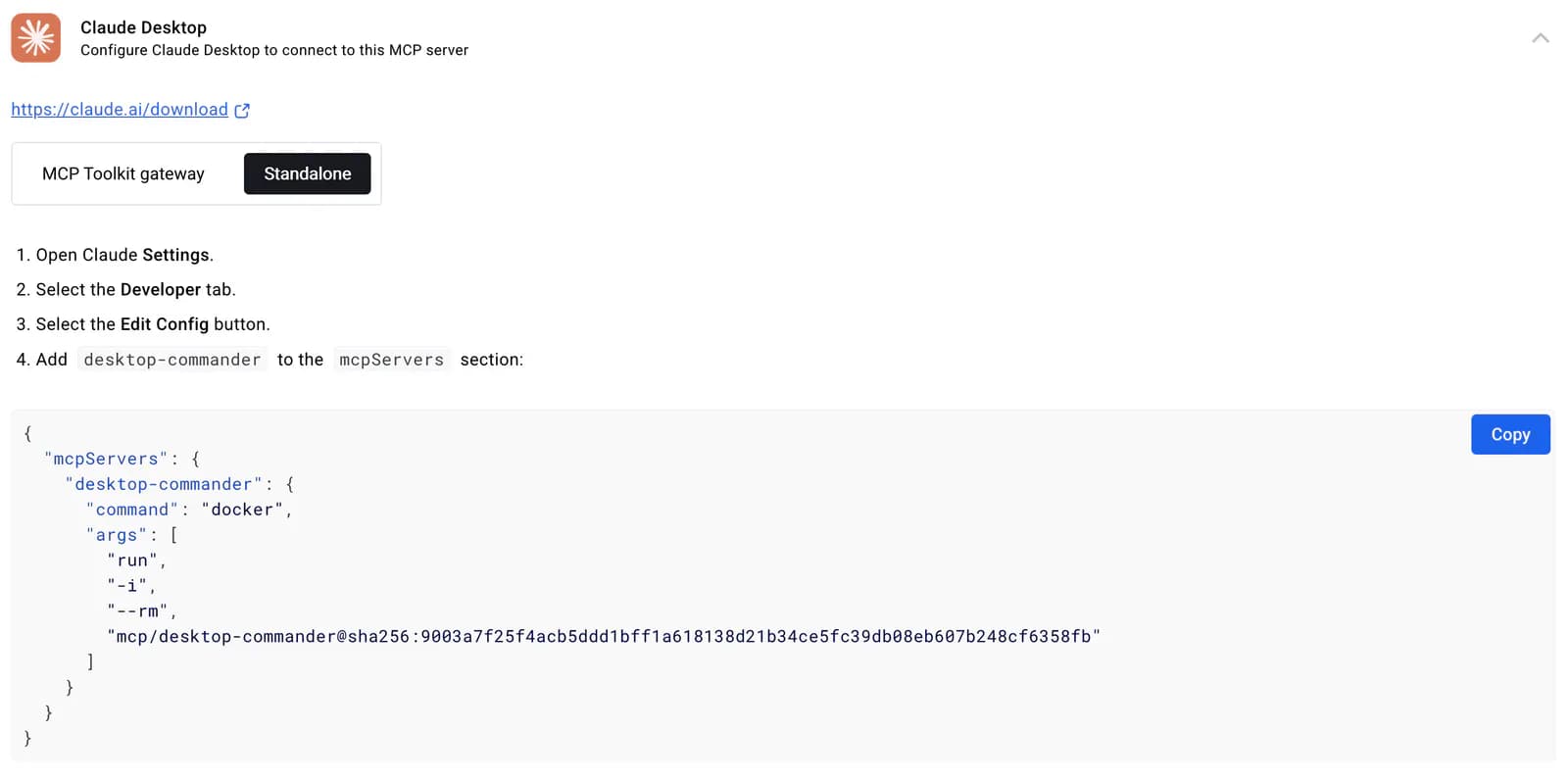
Codex can run `codex mcp add desktop-commander -- npx -y @wonderwhy-er/desktop-commander@latest`; Claude Desktop can run setup; other clients can use the README's mcpServers JSON. Restart or reconnect afterward.
- 3Narrow directories, commands, and telemetry
Call get_config, set allowedDirectories to the target project, review blockedCommands and disabled tools, and set telemetryEnabled to match your privacy choice. Do not treat these guardrails as isolation.
- 4Run a minimal test inside a disposable directory
List the test directory, read one known text file, then create, read, and remove a temporary file. Grant search, editing, or terminal tasks gradually only after paths and output are correct.
After restarting or reconnecting the MCP client, call Desktop Commander's get_config tool and confirm allowedDirectories, blockedCommands, and telemetryEnabled. Then use list_directory and read_file only inside a test directory, create one disposable text file, and verify its contents. Do not use production directories or destructive commands for the first check.
- Claude Desktop's one-command setup is `npx @wonderwhy-er/desktop-commander@latest setup`; the same package's `remove` action uninstalls it
- The standard connection uses command `npx` with args `-y` and `@wonderwhy-er/desktop-commander@latest`
- An empty allowedDirectories list gives file tools whole-file-system access and does not restrict terminal tools
- Set `telemetryEnabled` to false in `~/.desktop-commander/config.json` and restart the server to opt out
Use cases
Repository maintenance
Search code and configuration, read relevant files, apply focused edits, and run formatting or tests in a controlled repository.
Local log and process diagnosis
Start a development service, follow its output, search logs, and terminate a stuck process only after explicit confirmation.
Batch file organization
Find, move, rename, or update files inside one constrained directory while preserving recovery through version control or backups.
Structured-data exploration
Use an in-memory Python, Node.js, or R session to inspect columns, types, and summaries in CSV, JSON, Excel, and similar files.
Assessment
Desktop Commander MCP combines file, search, terminal, process, and data-exploration tools in a well-documented local MCP server that remains actively maintained. It also materially expands a client's host access, so the real adoption work is isolation, narrow directory scope, command approval, and a telemetry decision rather than the install command itself. This assessment is based on repository documentation, source structure, and history, not a local functional test.
Why it may be useful
- The README covers major MCP clients with copyable installation and removal paths
- File, terminal, process, and structured-data tools cover common local agent workflows
- SECURITY and PRIVACY explicitly document guardrail limitations, the threat model, and telemetry fields
- The repository is not archived and still received fixes and version commits in August 2026
What to know first
- High-privilege tools can amplify prompt injection or mistaken instructions into local file and command risk
- Directory allowlists and command blocklists are not security boundaries, and terminal use can bypass parts of them
- Default telemetry requires an explicit opt-out, while @latest reduces reproducibility
- The newest tag and the formal GitHub Release page follow different version cadences
README
Desktop Commander MCP
Overview
A local tool server for desktop MCP clients, exposing file read/write and search, surgical edits, terminal commands, process management, and structured-data analysis over STDIO. Its broad host permissions require narrow directory scope and container or VM isolation for sensitive work. An MCP server that gives clients such as Claude terminal control, file-system search, and diff-based file editing.
Getting started
- With Node.js 18+ available, connect using the README's npx setup flow, client-specific command, or standard STDIO JSON. Decide on Docker or VM isolation first, then narrow allowedDirectories to one trusted project and choose whether to disable telemetry.
- Exposes file read/write, precise editing, file-name and content search, terminal sessions, and process management to local MCP clients over STDIO.
- Provides in-memory Python, Node.js, and R sessions for exploring CSV, JSON, Excel, and related structured data, plus readers for PDF, DOCX, and images.
- After restarting or reconnecting the MCP client, call Desktop Commander's get_config tool and confirm allowedDirectories, blockedCommands, and telemetryEnabled. Then use list_directory and read_file only inside a test directory, create one disposable text file, and verify its contents. Do not use production directories or destructive commands for the first check.
Configuration
npx @wonderwhy-er/desktop-commander@latest setup