
dsh-im
Connect Feishu, WeChat, DingTalk, WeCom, QQ, Slack, Telegram, Discord and WhatsApp to DeepSeek Harness for continuing sessions, approving tool calls and exchanging files.
Project overview
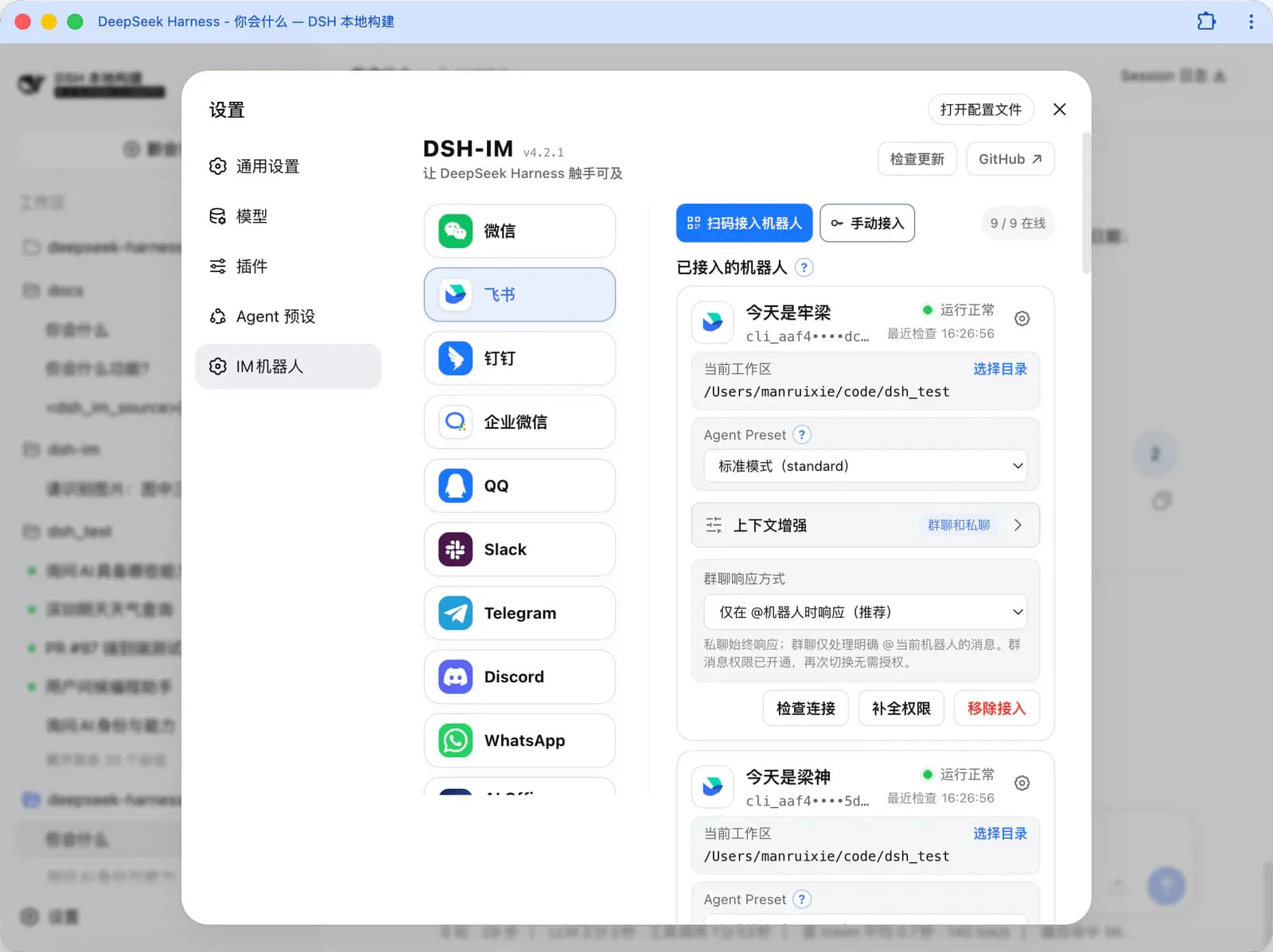
dsh-im turns familiar messaging apps into remote entry points for DeepSeek Harness. Nine channels share a settings page, while each bot keeps its own credentials, workspace, model, Agent Preset and session mappings. Users can continue tasks, steer runs, approve tools, send images and receive result files. This is more than a notification connector: bots reach sessions and tools, so trusted users and file-access boundaries must be defined first.
Core capabilities
Unified channel setup
Channels use QR authorization, manifests or bot credentials as appropriate. Multiple bots can be managed within one channel.
Sessions and approvals
Commands include /new, /status, /stop, /steer, /workspace and /session. Interactive questions and tool approvals return to the associated session.
Images and result files
Image input and native result attachments are supported across nine channels. Result images prefer native image messages and can fall back to files when rejected.
Proactive delivery and synchronization
Text can be delivered to a botId + targetId. Saved private-chat targets can enable off-by-default bidirectional synchronization, limited to private text on the current Host.
Installation and usage
Install the npm package, restart DSH Web, refresh the browser and open the top-level IM Bots settings page. Bind one controlled channel and check /status.
Let an AI Agent install it
Send this prompt to Codex, Claude Code, or another AI agent that can work with your local environment.
Install and configure dsh-im from https://github.com/xmanrui/dsh-im . Read README, package.json and LICENSE, check Node.js ≥22.19 and manifest-declared DSH compatibility. Run `dsh plugin --profile web add -w @xmanrui/dsh-im`, restart `dsh web`, refresh and open Settings → IM Bots. Confirm trusted users, workspace and Host file permissions before binding my chosen channel. Submit tokens only to protected local Host credential storage; never print them or put them in ordinary logs. Verify /status and a controlled private chat. Ask before credentials, additional permissions, overwriting files, broader LAN access or build-script approval. Do not enable proactive delivery or bidirectional synchronization automatically, and do not send sensitive files. Report actual results.- Node.js ≥22.19 and a working DSH Web setup
- Check the DSH compatibility versions declared in package.json
- A controlled platform account or bot credential with defined access scope
dsh plugin --profile web add -w @xmanrui/dsh-im- 1Check the Host and audience
Confirm Node.js ≥22.19 and manifest compatibility. Choose a controlled private chat or test bot and define its workspace and available tools.
- 2Install and open the new settings entry
Run `dsh plugin --profile web add -w @xmanrui/dsh-im`, restart `dsh web`, refresh the browser and open Settings → IM Bots.
- 3Bind a channel and workspace
Select a platform and complete QR or credential setup. Check the bot's workspace, model and Agent Preset; use Telegram/WhatsApp restricted access modes or allowlists where appropriate.
- 4Verify sessions and file boundaries
Send /status and a normal private message. Use /new after changing the model or preset. Test attachments only with a deliberately prepared, non-sensitive small file, not a whole project or credential file.
Wait for an online bot, send /status and confirm a normal private-chat reply. The settings-page connection test needs at least one previously received private message to identify its target; WhatsApp uses self-chat.
- Use Settings → IM Bots, not the former Settings → Plugins entry.
- Changing a bot's model or Agent Preset does not alter an existing session; send /new and then a normal message to use the new selection.
- trusted-host reuses Host/Origin checks and is not user authentication; do not expose management interfaces for convenience.
- For Telegram using Node environment-proxy support, the README requires Node.js ≥22.21 and a Host restart after proxy changes.
Use cases
Continue work away from the desktop
Check, steer or stop a task through a trusted private chat without publicly exposing DSH administration.
Deliver results to a conversation
Return a non-sensitive report or screenshot as a native attachment after checking recipients, platform scopes and file boundaries.
Assessment
This assessment uses the current README, manifest, license and commits. Session control, approvals and result delivery make it more useful than a one-way notification bot. The corresponding file-delivery access is broad, however: QR setup and allowlists do not replace Host permission controls. We did not bind bots or test live messages.
Why it may be useful
- Shared setup and session-control flow across nine channels
- Independent workspaces and presets for multiple bots
What to know first
- File return is enabled by default without extra source, workspace or extension restrictions; constrain access at the Host layer
- Bidirectional synchronization excludes groups, Topics, Threads and explicit remote harnessBaseUrl
- Platform scopes, quotas and attachment limits affect actual delivery
README
dsh-im
Overview
Connect Feishu, WeChat, DingTalk, WeCom, QQ, Slack, Telegram, Discord and WhatsApp to DeepSeek Harness for continuing sessions, approving tool calls and exchanging files. Connect Feishu, WeChat, DingTalk, WeCom, QQ, Slack, Telegram, Discord and WhatsApp to DeepSeek Harness for continuing sessions, approving tool calls and exchanging files.
Getting started
- Install the npm package, restart DSH Web, refresh the browser and open the top-level IM Bots settings page. Bind one controlled channel and check /status.
- The current entry is the top-level IM Bots settings page; the old Plugins-page entry has been removed.
- Local Web and Desktop reuse current Host services by default; enabling LAN access is not required for ordinary setup.
- Wait for an online bot, send /status and confirm a normal private-chat reply. The settings-page connection test needs at least one previously received private message to identify its target; WhatsApp uses self-chat.
Configuration
dsh plugin --profile web add -w @xmanrui/dsh-im